Models page
The Models page (G M) lists every model and LoRA the app can use, with the disk each takes and whether it fits this machine. It is also where you download models ahead of time, convert checkpoints, import LoRAs and free space.
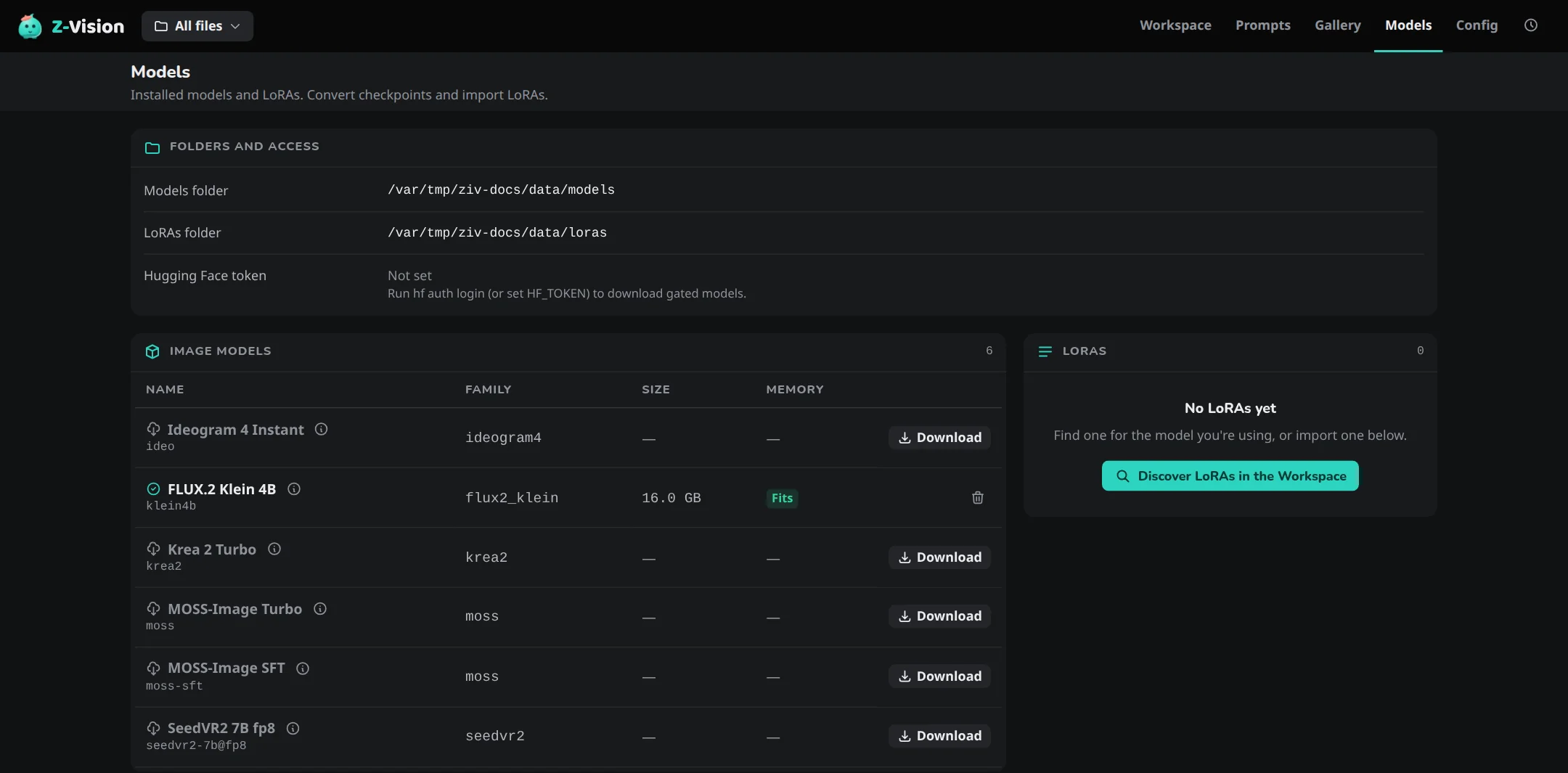
Folders and access
A panel at the top shows the Models folder, the LoRAs folder and whether a Hugging Face token was found, which gated models need. The Config page has a similar panel, which shows the Model cache instead of the Models folder.
The tables
| Table | Lists |
|---|---|
| Image models | Built-in models such as FLUX.2 Klein 9B, models you converted, and stored quantized copies |
| Video models | LTX-2.3 4-bit, LTX-2.3 8-bit, LTX-2.5 4-bit and MiniMax H3, and converted LTX and MiniMax H3 models |
| Audio models | YuE2 3B, Qwen3-TTS 1.7B and Stable Audio 3 Medium |
| Prompt enhancer | Fast, Smart and, when set on the Config page, Custom |
| Background removal | The cut-out models of Transparent background, as one row |
| LoRAs | The files in loras/ in the data folder |
| Other downloads | Hugging Face downloads that nothing uses any more, and Unused cache files |
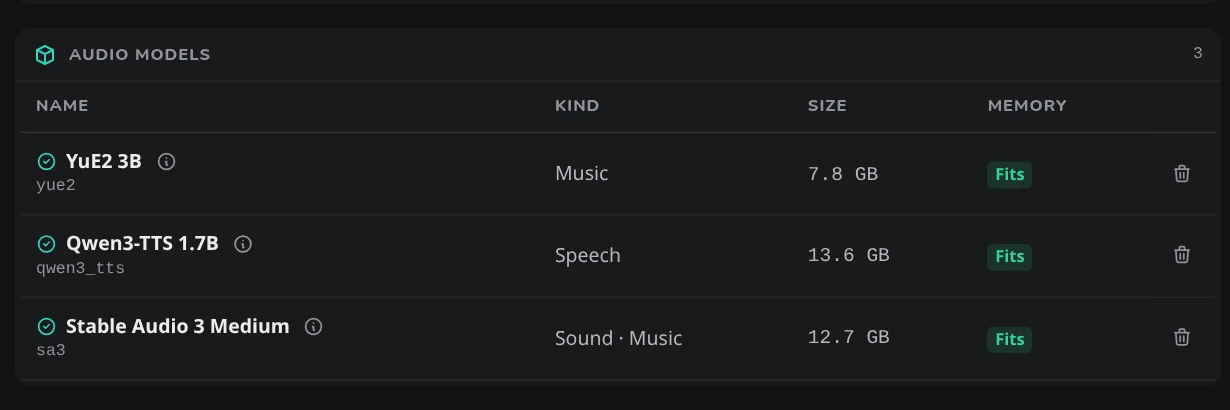
Under a built-in model's name is its alias, such as klein9b under FLUX.2 Klein 9B (see Names and aliases). A stored quantized copy reads q8 copy of its base model, and a converted video model reads Converted at q4, the one level it is stored at. The ⓘ after a built-in model's name shows its licence; see Licences.
Other downloads lists models in the Hugging Face cache that no model, enhancer or converted model uses, for example one another tool downloaded or one left behind by a model you deleted. Unused cache files appears when the cache holds files no download links to any more, left behind by deletes outside the app.
Size is the disk the model uses: for a built-in model its Hugging Face download, for a converted model its own folder without the base-model files it links to. Quantized copies count with their model. Memory is the badge from the Workspace; see The memory badges.
Names and aliases
A model has a name wherever you pick one: the Model menu in the Workspace, -m on the command line, a prompt file, config.yaml. The Web UI shows a built-in model by its name, such as FLUX.2 Klein 9B, and this page lists the alias under it. The alias is what you type with -m. An alias of your own shows as its alias, and a converted model by the name you gave it.
How a name you type is resolved, and every built-in alias, is in How a name is found.
Download and Cancel
Download on a row asks before the download starts; Cancel there starts nothing. Downloads run one at a time, beside your jobs, and later ones wait as Queued. Cancel on a running or queued download keeps the finished files. A job that needs a model being downloaded waits for it. How to use these is in Download a model ahead of time.
Delete
Each row has a delete button once any of its files are on disk, so an interrupted download can be cleared too. It asks first, and is unavailable while jobs are running or queued, or while that model is downloading. What each kind of row removes, and what a converted model keeps, is in Delete models and free space.
Convert a checkpoint
Convert a checkpoint turns a single .safetensors file, such as a community fine-tune, into a model you can pick by name. How to do it, and what each type accepts, is in Convert a fine-tune.
The form takes a Checkpoint file, a Name for the app's lists and a Model type, and the rest depends on the type:
- Image types have Base model (optional), a Hugging Face repo or folder that supplies the parts the checkpoint lacks. Only
zimageuses it, and it defaults toTongyi-MAI/Z-Image-Turbo. Quantized copy (optional) can also save aq8orq4copy. Copy instead of moving copies those base-model files into the new folder instead of linking them; the checkpoint itself is never moved. - LTX-2.3 and LTX-2.5 read the checkpoint and show its version, with advice. Quantize level is
q4orq8(the only level stored), and Distillation merges Lightricks' distilled LoRA into a plain-dev checkpoint. The level that fits this machine is preselected. - MiniMax H3 shows what the file's name or metadata hint, with Already step-distilled for a checkpoint that already runs at 4 or 8 steps.
Import a LoRA
Two forms add a LoRA to the LoRAs table. How to use them is in Import a LoRA.
- Import a local LoRA copies a
.safetensorsfile (LoRA file, with an optional Name) intoloras/in the data folder. - Download a LoRA from Hugging Face fetches one from a Repository (
owner/repository); File names the file in it, and Name is optional. The download shows as a row of the table with Cancel, like a model download.
Deleting a LoRA also removes its chips in the Workspace, and can't be done while a job runs.
Discover LoRAs
Discover LoRAs in the Workspace on the LoRAs table switches to the Workspace and opens Discover LoRAs for the model you have chosen there; the Models page has no drawer of its own.