Your first video
From a running Web UI to a finished clip, with sound.
If the Web UI isn't open yet, run ziv ui in a terminal and keep the terminal open; see Install.
Clips are saved as .mp4 files in the output folder, each with the settings it was made with; see Output files. Nothing moving for a long time? See The first job seems stuck.
1. Pick the video model
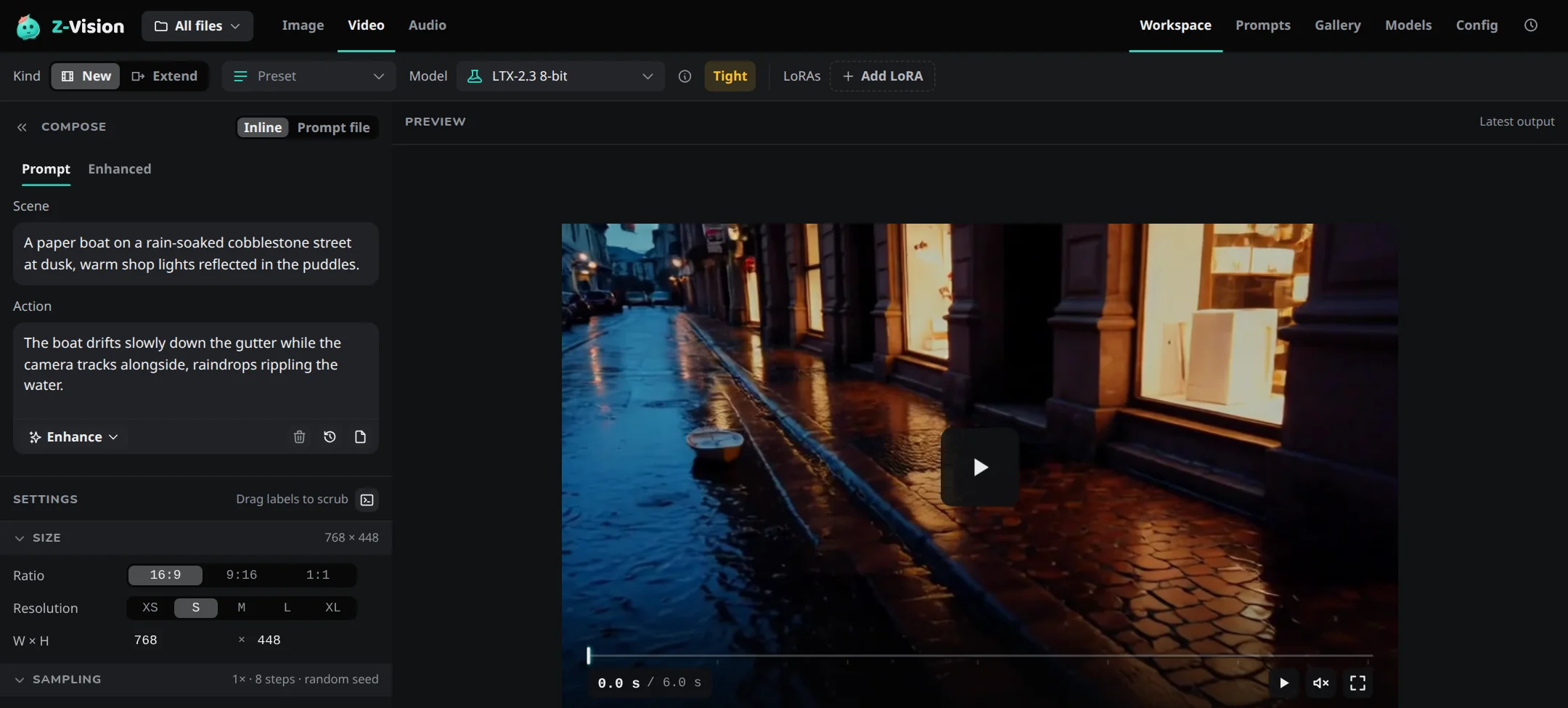
Choose Video in the top bar. Model at the top of the sidebar shows the video model; if you haven't downloaded it, Generate offers to. If Model shows Tight or Too large, pick the smaller LTX-2.3 4-bit (ltx-4) (why).
2. Describe the scene and the action
A video prompt has two boxes under Compose:
- Scene: who and where, the look and the camera setup. It stays the same for the whole clip.
- Action: what happens, in order, with camera moves, sounds and any spoken lines in quotes.
You can leave Scene empty and write everything in Action. More on both: Scene and action.
3. Set the length and size
In Settings:
- Duration (s) is the clip's length. It snaps to a length the model can make and shows the frame count next to it.
- Resolution and Ratio set the size.
16:9ats(768×448) is the default and quick to try.
4. Generate
Press Generate, or Ctrl+Enter (Cmd+Enter on a Mac). Cancel, or Esc twice, stops a video job.
The finished clip plays in the preview and appears first in the Gallery strip below it.
Next
- Start from a picture: Image to video.
- Make a clip longer with Extend in the viewer: Extend a clip.
- Prefer the terminal? Make video from the command line.