Your first audio
From a running Web UI to a first take in the Audio tab. Start with speech: it needs nothing but a few words.
If the Web UI isn't open yet, run ziv ui in a terminal and keep the terminal open; see Install. Audio also needs ffmpeg: step 4 of Install.
Takes are saved as FLAC files in the output folder, each with the settings it was made with; see Output files. Nothing moving for a long time? See The first job seems stuck.
1. Pick a kind and a model
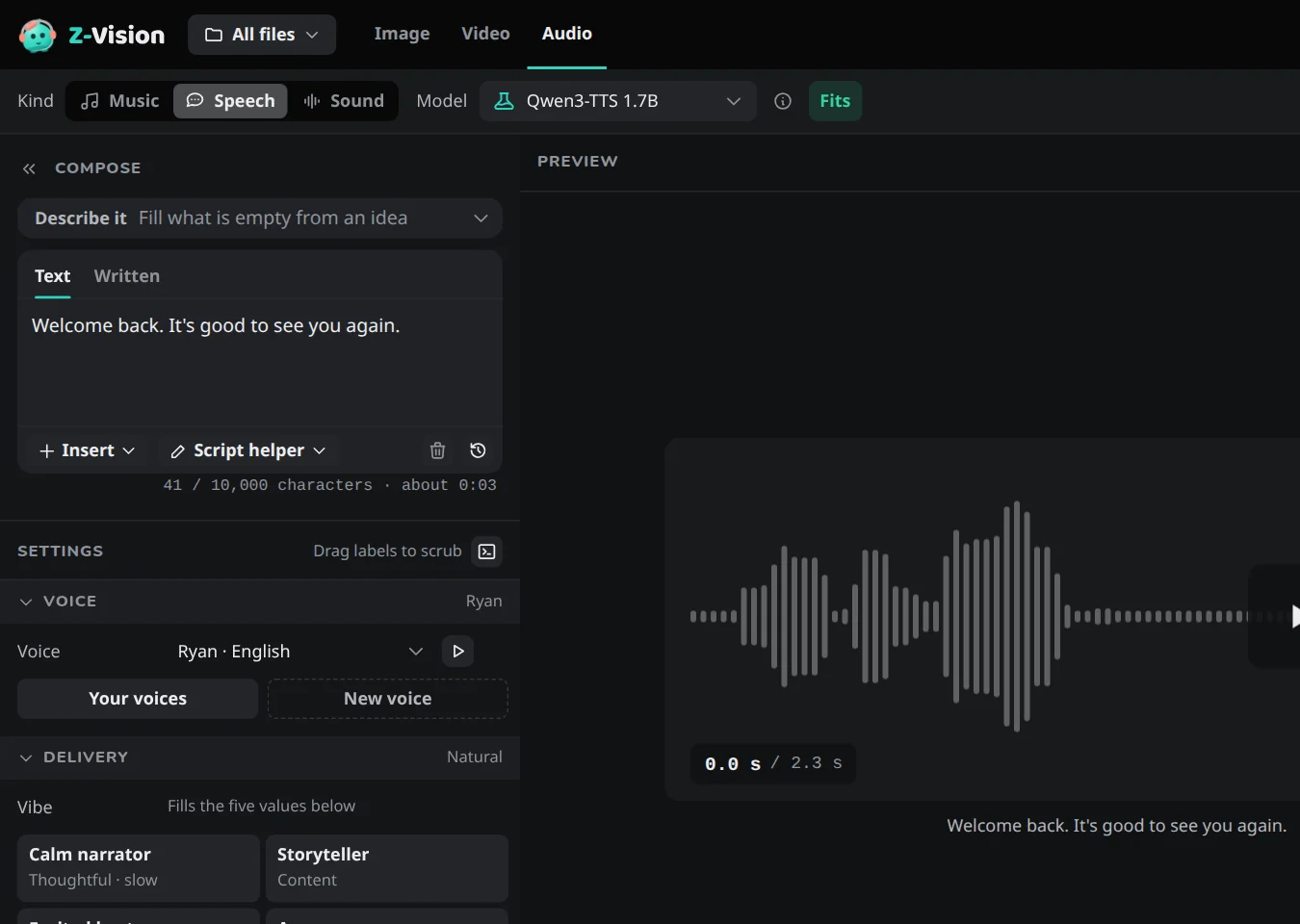
Choose Audio, the last tab in the top bar. In the toolbar, set Kind to Speech. Model shows Qwen3-TTS 1.7B, the model that reads text aloud. If you haven't downloaded it, Generate offers to.
2. Write it
Type what should be read in Text under Compose:
Plain text is enough. The line under the box counts the characters and says how long the text takes to read. The voice is Ryan, the default, under Voice in Settings; the other default voices are in Voices.
3. Generate and listen
Press Generate, or Ctrl+Enter (Cmd+Enter on a Mac).
When the take is done, its waveform shows in the preview; press the play button to listen. The take is also in the Gallery, which has an Audio only filter, and it's the same file you can give to a video: Use as → Audio track.
Next
- Change how it is read: Make speech and sound.
- Songs and instrumentals: Make music. Ambience and effects: Sound.
- Prefer the terminal? Make audio from the command line.