Audio tab
Audio is the last tab in the top bar of the Workspace. It makes music, speech and sound as FLAC files, on your own computer. The tab is hidden on a machine that can't run an audio model.
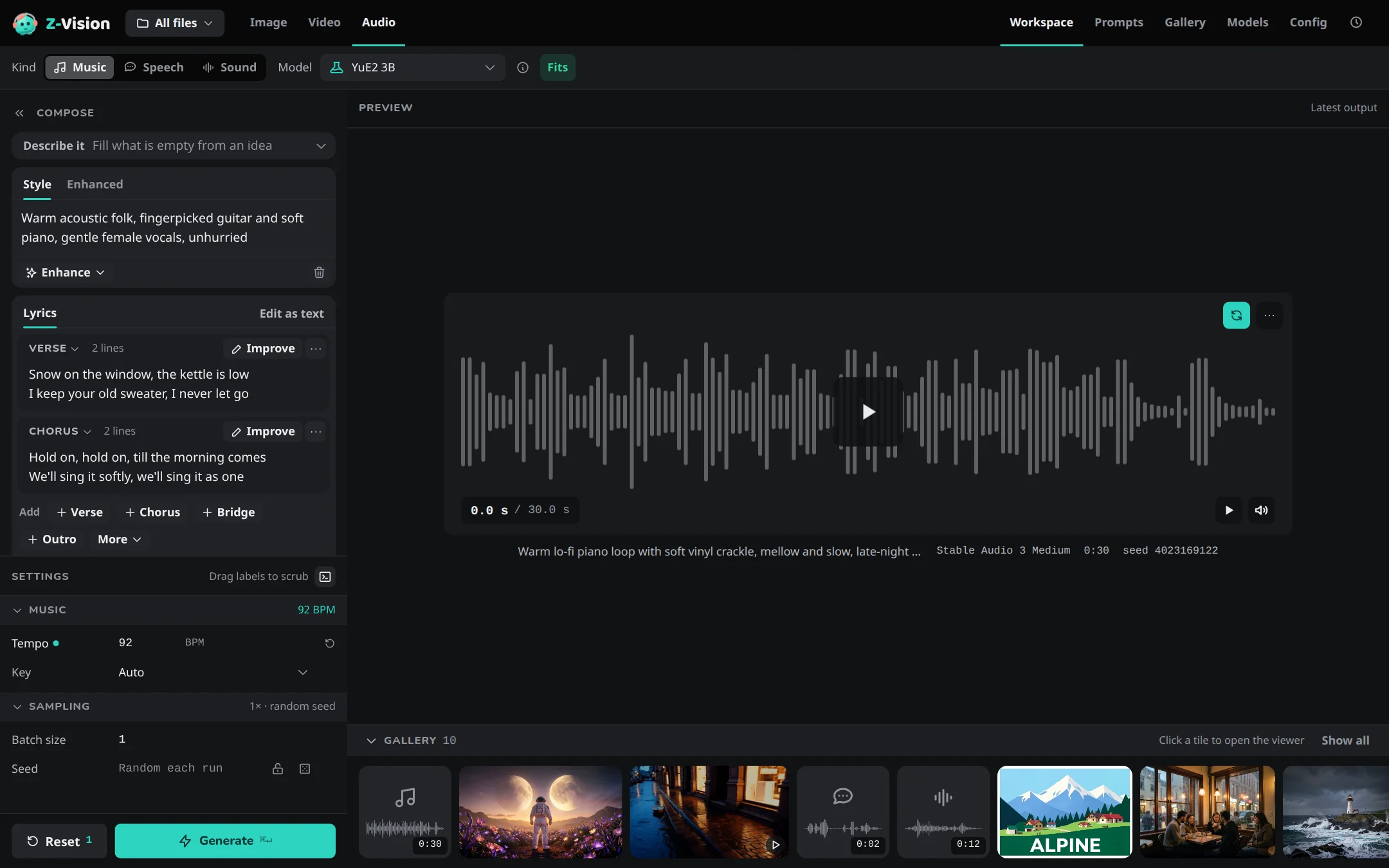
Kind (Music, Speech or Sound) decides what Compose and Settings show, and the Model menu lists the models for it. Presets, Quant and LoRAs aren't used, and there is no JSON caption or negative prompt. What each kind makes, its models and its limits are in Make music and Make speech and sound.
On a phone: see Audio on a phone.
Compose
| Kind | Compose | Settings |
|---|---|---|
| Music | Describe it, then Style (required), with an Enhanced tab, above Lyrics; a model without lyrics has only the Style | The Music section |
| Speech | Describe it, then Text, with a Written tab, Insert and a Script helper | Voice and Delivery |
| Sound | Prompt, what you hear, with an Enhanced tab | The Sound section |
The Enhanced and Written tabs, their marks, the versions, and Clear with its Undo work as in the prompt box. For Lyrics, Clear empties the whole song and its versions.
Writing the text of each kind is covered in Write the style and lyrics, Write the text and Make sound effects and ambience.
Describe it
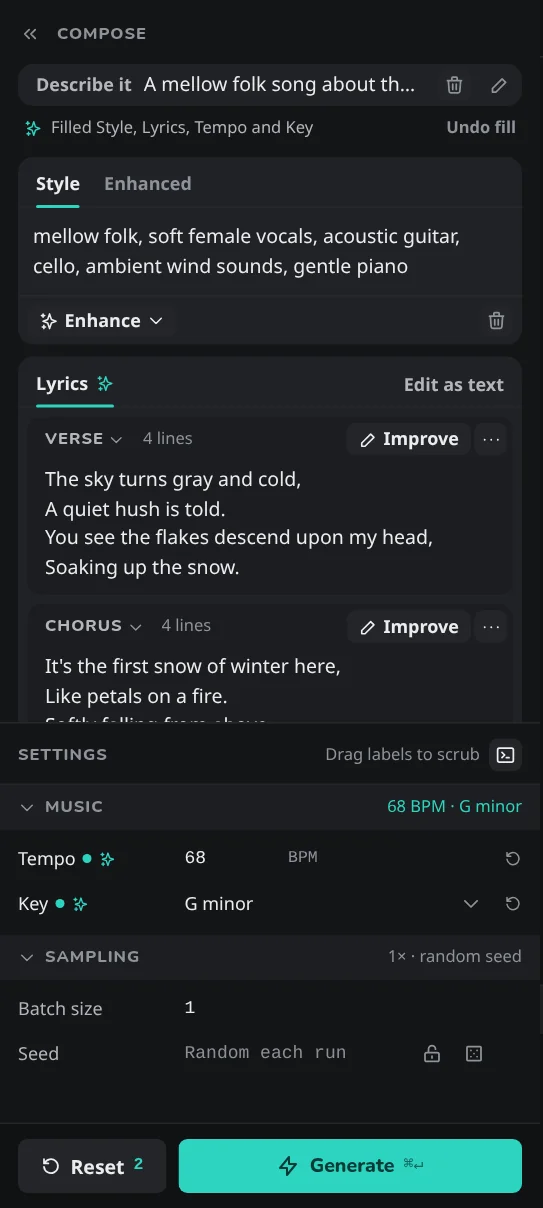
Describe it is a box at the top of Compose for Music and Speech, shown wherever the prompt enhancer is set up. You write an idea in it and press Fill in. Its Fast or Smart choice is separate from the one in Enhance and the helpers. A ✦ marks the Tempo, Key and Vibe it wrote until you edit them, and Clear empties the idea only. What it writes and keeps is in Write it from an idea with Describe it.
Song blocks
The Lyrics box shows a song as one block per section (Verse, Chorus, Pre-Chorus…). A block's ⋯ menu has Improve this section… (or Write, on a section with no words) where the prompt enhancer is set up, and Edit as text shows the whole lyrics as one text with its [section] tags. A song with no words in any block is an instrumental of those sections; see Make an instrumental.
Lyrics helper
Improve lyrics in the Lyrics tools row opens a helper for the whole song; a block's Improve (or Write) opens it for that section. A result is a version of the lyrics, with a ✦ after Lyrics while a version the helper wrote is shown. The helper is offered only for a model that sings lyrics. See Improve lyrics.
Enhance
Enhance under the Style (Music) or the Prompt (Sound) rewrites it for the open model, with choices that each start on Keep. It never touches Lyrics, and the Music panel offers Singer only when the song has words to sing. Reuse settings, Retry and Load settings of an enhanced take put your text in Style or Prompt and the rewrite in Enhanced. What each choice does is in Polish the style with the enhancer and, for sound, Polish the prompt with the enhancer.
Insert and Script helper
Insert in the Speech tools row puts a pause, a laugh or a delivery change into the text at the caret, or into the Written text while that tab is shown. See Insert a pause, a laugh or a delivery.
Script helper
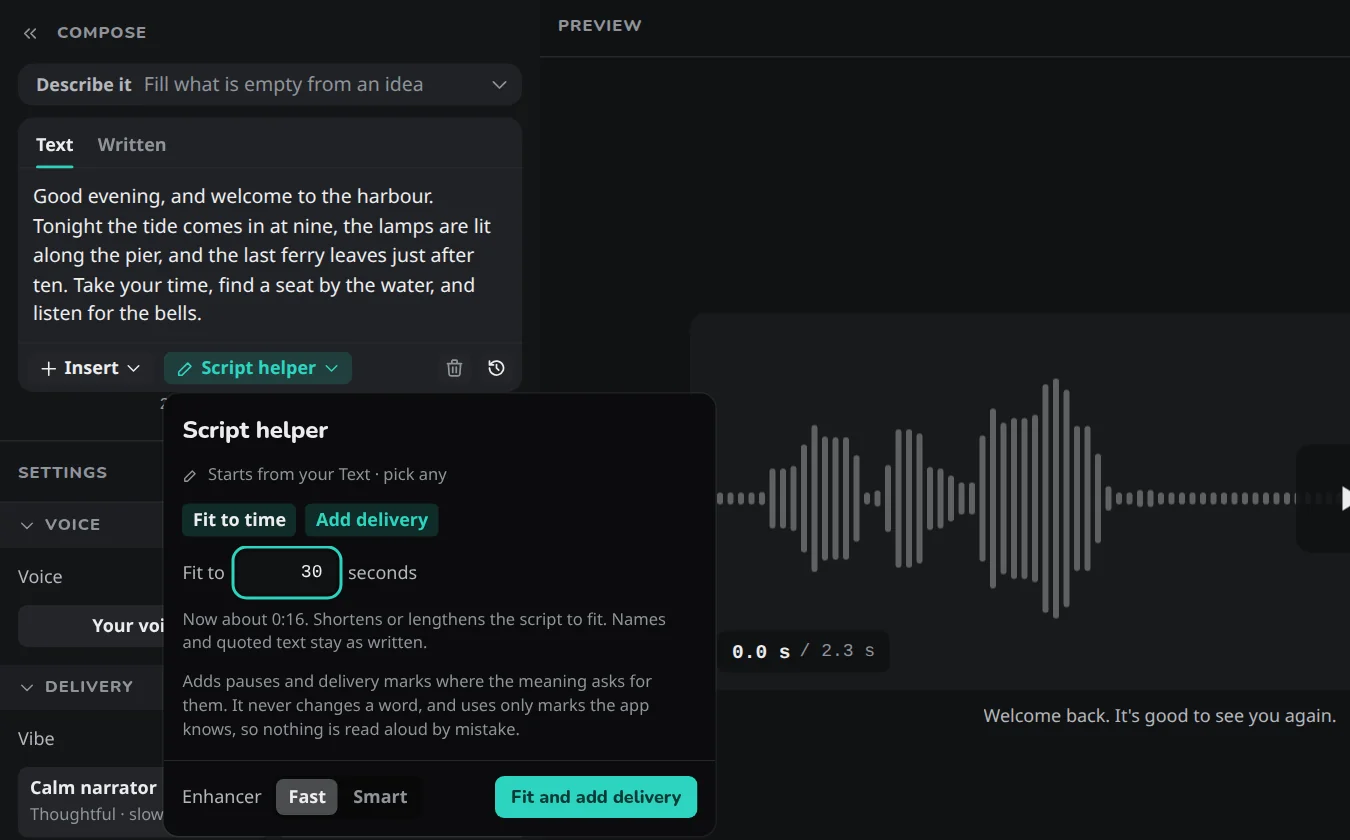
Script helper in the same row fits the script to a time or adds delivery. A result lands in the Written tab beside your Text. See Get help with the script.
Settings
The groups of Settings follow the kind. Seed has the same padlock and dice as on the other tabs; see Seed. Batch size makes that many takes with one model load. Reset puts back the tempo, key, delivery, sound type, length, voice, Enhance options, Batch size and Seed, keeping the kind, the models and the text.
Music
Tempo and Key are Auto until you set them, and the model picks. Length (s) is only there for a model that sets its own length, Stable Audio 3 Medium: 1 to 380 seconds. Stable Audio 3 Medium is offered under Music next to YuE2 and under Sound; on it, Music has no Lyrics box. See Set tempo, key and length and Make music with Stable Audio.
Sound
Type is Auto, Ambience, Effect or One-shot. Length (s) is empty on Auto, and the field shows the number Auto will use; typing a number from 1 to 380 locks it. See Make sound effects and ambience.
Voice
Voice lists Your voices above the nine Default voices; Ryan is the default. Your voices and New voice open the Voices window, where you design a voice, clone one from a recording and manage saved ones. A recording used for one take only shows as From recording in the dropdown. A speech take can also be kept as a voice from the Gallery; see Use as. Renaming and deleting a saved voice is in Manage your voices; using, designing and cloning voices is in Pick a voice.
Delivery
Delivery sets how a default voice says the text: a Vibe and rows for Emotion, Manner, Pace, Pitch and Expressiveness. With a saved voice or a recording chosen in Voice, the section only says that the voice reads as it was made. What each setting does is in Set the delivery.
While a take is made
The job card counts takes (Take 1 of 2), and Pause, Skip, Repeat and Cancel work as for images.
The result
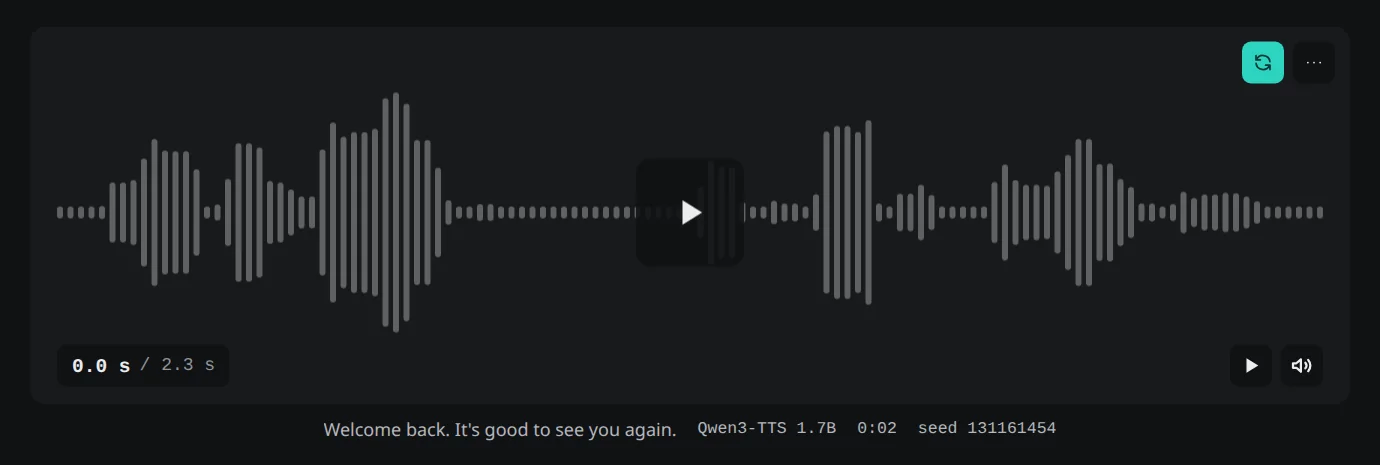
The preview shows the finished take as a player whose waveform is the timeline; nothing plays by itself. A take that reached YuE2's limit carries Cut at 6:00. Takes appear in the Gallery strip as audio tiles; see Audio in the Gallery. Where the files are and how to use a take elsewhere is in Find your takes.